Build an AI-powered website assistant with Amazon Bedrock
December 29, 2025
Businesses face a growing challenge: customers need answers fast, but support teams are overwhelmed. Support documentation like product manuals and knowledge base articles typically require users to search through hundreds of pages, and support agents often run 20–30 customer queries per day to locate specific information.
This post demonstrates how to solve this challenge by building an AI-powered website assistant using Amazon Bedrock and Amazon Bedrock Knowledge Bases. This solution is designed to benefit both internal teams and external customers, and can offer the following benefits:
- Instant, relevant answers for customers, alleviating the need to search through documentation
- A powerful knowledge retrieval system for support agents, reducing resolution time
- Round-the-clock automated support
Solution overview
The solution uses Retrieval-Augmented Generation (RAG) to retrieve relevant information from a knowledge base and return it to the user based on their access. It consists of the following key components:
- Amazon Bedrock Knowledge Bases – Content from the company’s website is crawled and stored in the knowledge base. Documents from an Amazon Simple Storage Service (Amazon S3) bucket, including manuals and troubleshooting guides, are also indexed and stored in the knowledge base. With Amazon Bedrock Knowledge Bases, you can configure multiple data sources and use the filter configurations to differentiate between internal and external information. This helps protect internal data through advanced security controls.
- Amazon Bedrock managed LLMs – A large language model (LLM) from Amazon Bedrock generates AI-powered responses to user questions.
- Scalable serverless architecture – The solution uses Amazon Elastic Container Service (Amazon ECS) to host the UI, and an AWS Lambda function to handle the user requests.
- Automated CI/CD deployment – The solution uses the AWS Cloud Development Kit (AWS CDK) to handle continuous integration and delivery (CI/CD) deployment.
The following diagram illustrates the architecture of this solution.
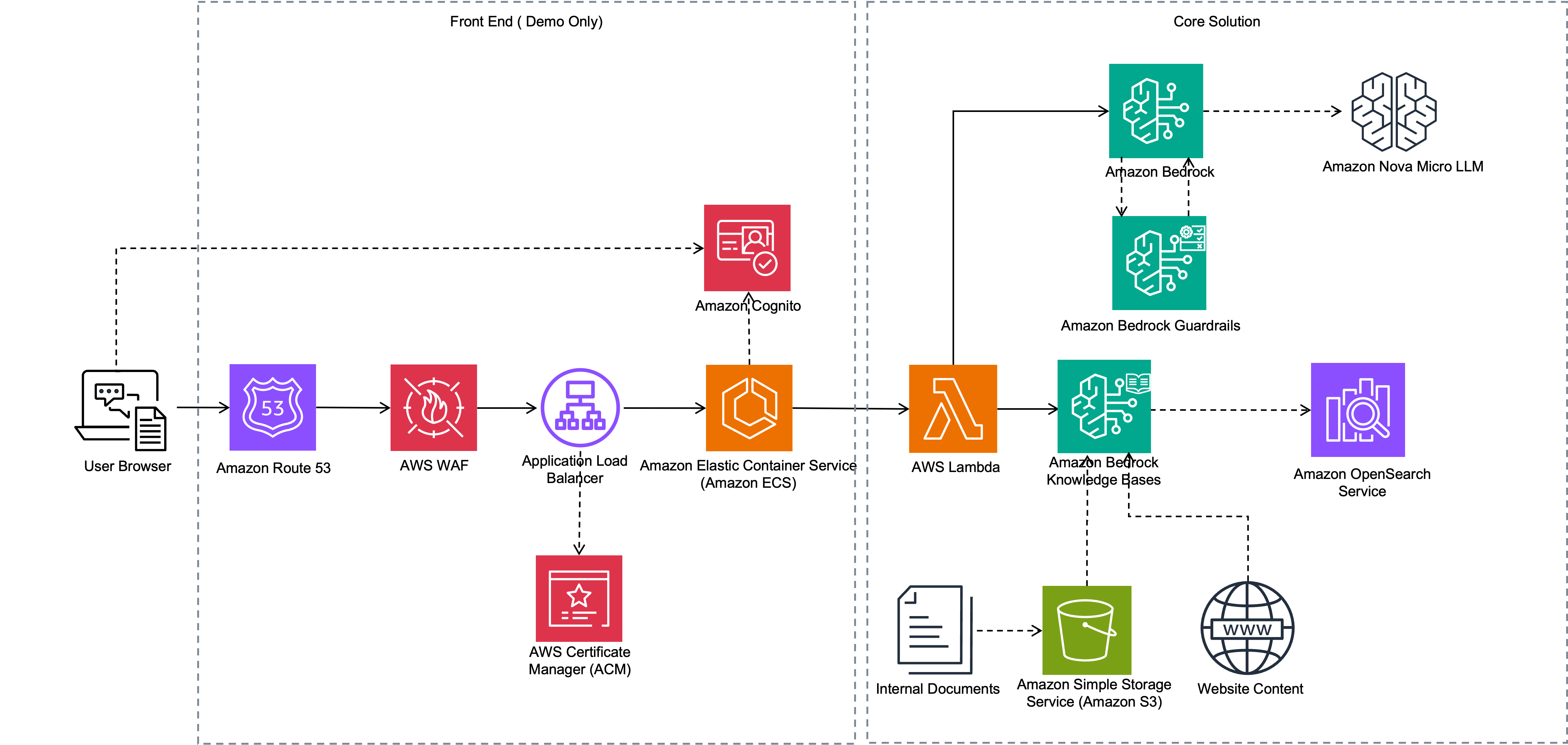
The workflow consists of the following steps:
- Amazon Bedrock Knowledge Bases processes documents uploaded to Amazon S3 by chunking them and generating embeddings. Additionally, the Amazon Bedrock web crawler accesses selected websites to extract and ingest their contents.
- The web application runs as an ECS application. Internal and external users use browsers to access the application through Elastic Load Balancing (ELB). Users log in to the application using their login credentials registered in an Amazon Cognito user pool.
- When a user submits a question, the application invokes a Lambda function, which uses the Amazon Bedrock APIs to retrieve the relevant information from the knowledge base. It also supplies the relevant data source IDs to Amazon Bedrock based on user type (external or internal) so the knowledge base retrieves only the information available to that user type.
- The Lambda function then invokes the Amazon Nova Lite LLM to generate responses. The LLM augments the information from the knowledge base to generate a response to the user query, which is returned from the Lambda function and displayed to the user.
In the following sections, we demonstrate how to crawl and configure the external website as a knowledge base, and also upload internal documentation.
Prerequisites
You must have the following in place to deploy the solution in this post:
- An AWS account.
- Model access in Amazon Bedrock for Amazon Titan and Amazon Nova Lite. Use the same AWS Region for model access as the Region where you deploy the solution.
- An S3 bucket in the same Region to store internal data.
Create knowledge base and ingest website data
The first step is to build a knowledge base to ingest data from a website and operational documents from an S3 bucket. Complete the following steps to create your knowledge base:
- On the Amazon Bedrock console, choose Knowledge Bases under Builder tools in the navigation pane.
- On the Create dropdown menu, choose Knowledge Base with vector store.
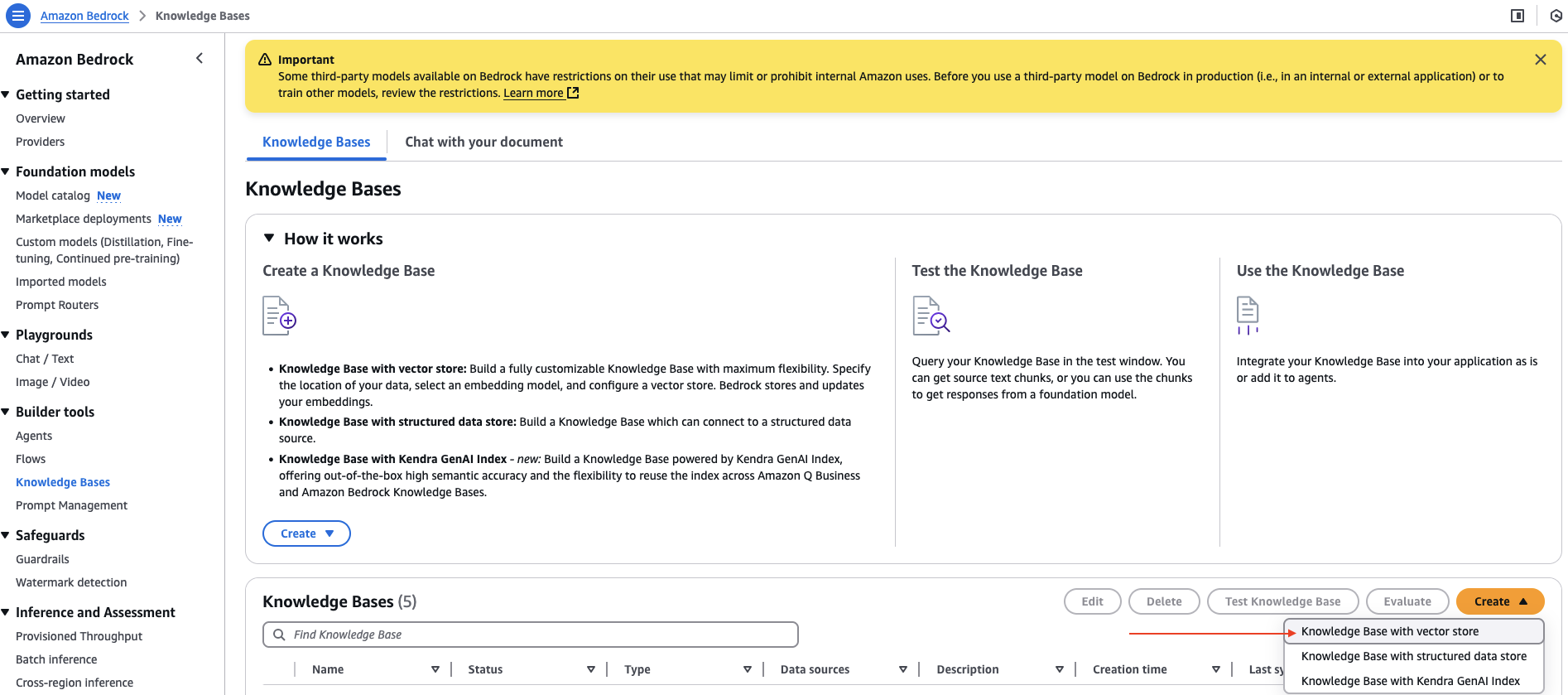
- For Knowledge Base name, enter a name.
- For Choose a data source, select Web Crawler.
- Choose Next.
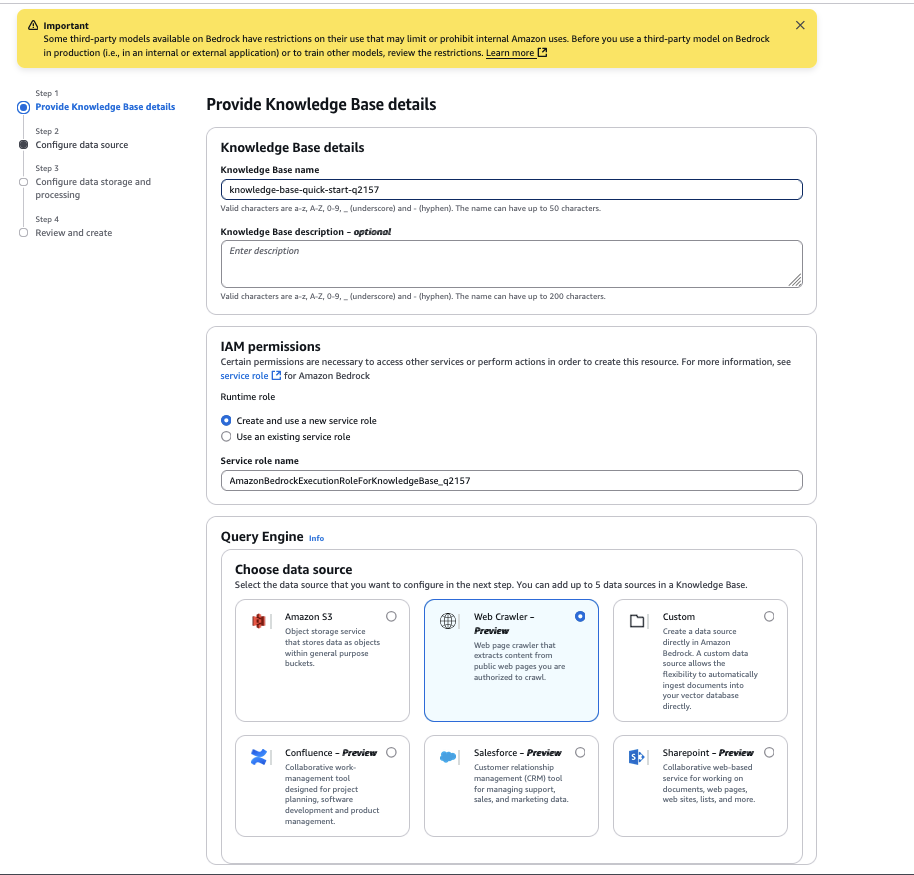
- For Data source name, enter a name for your data source.
- For Source URLs, enter the target website HTML page to crawl. For example, we use
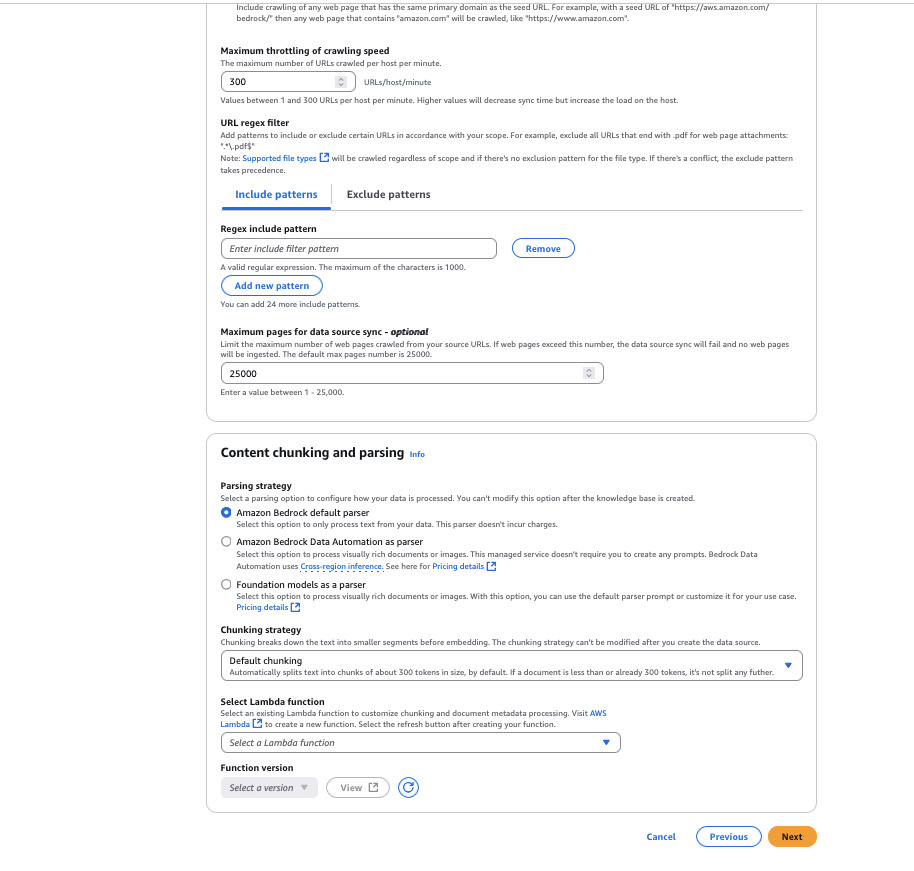
https://docs.aws.amazon.com/AmazonS3/latest/userguide/GetStartedWithS3.html. - For Website domain range, select Default as the crawling scope. You can also configure it to host only domains or subdomains if you want to restrict the crawling to a specific domain or subdomain.
- For URL regex filter, you can configure the URL patterns to include or exclude specific URLs. For this example, we leave this setting blank.
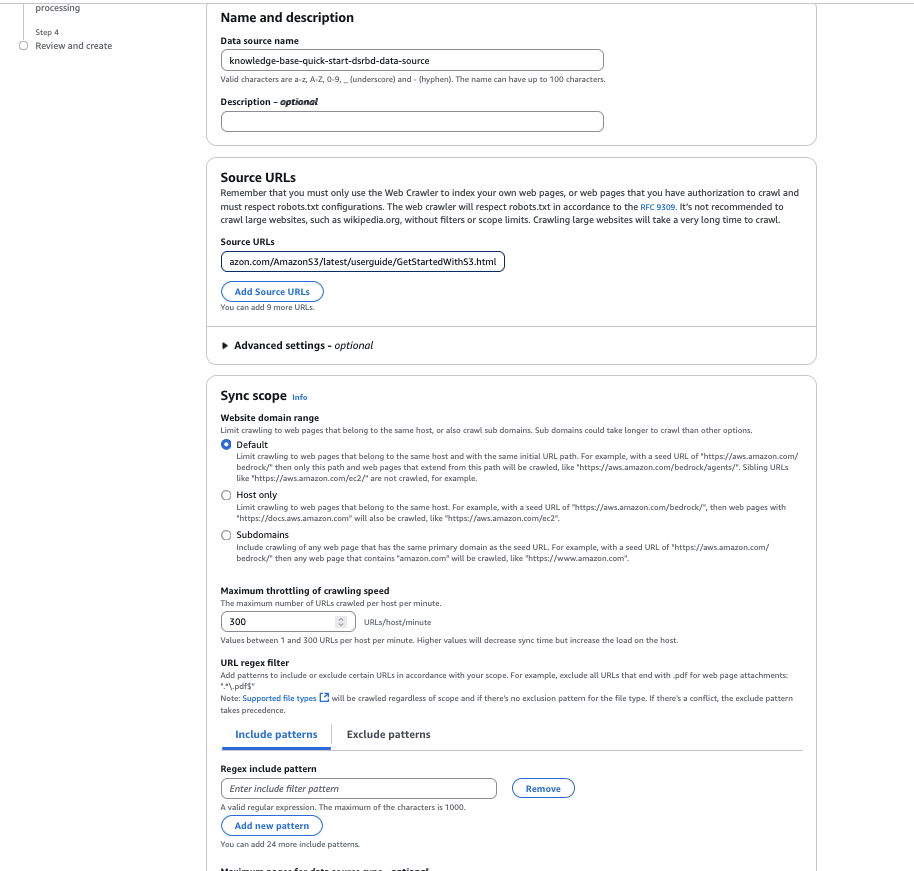
- For Chunking strategy, you can configure the content parsing options to customize the data chunking strategy. For this example, we leave it as Default chunking.
- Choose Next.
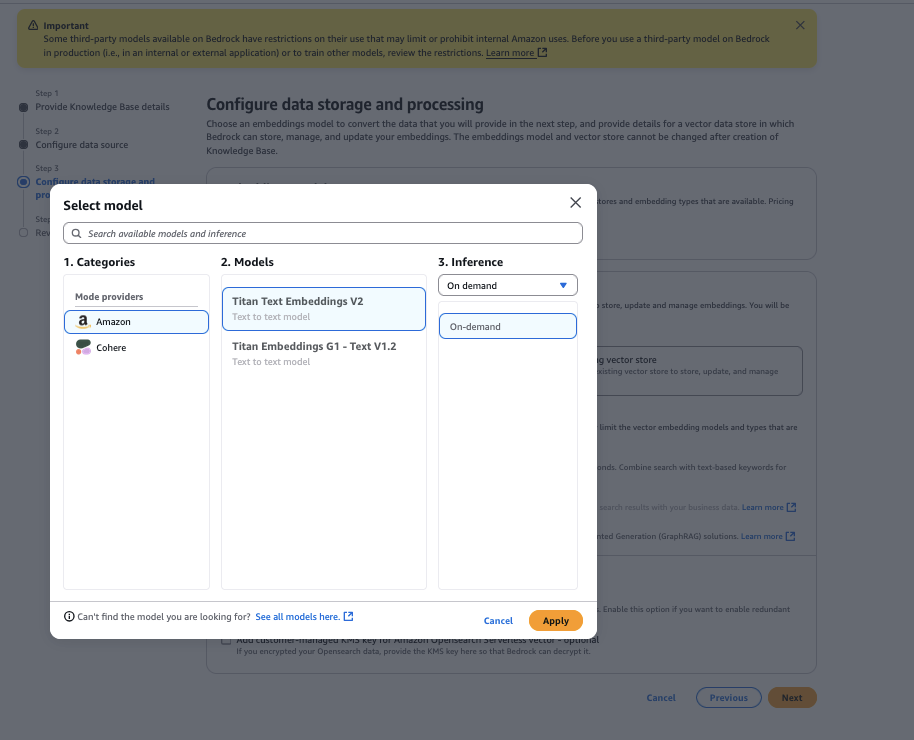
- Choose the Amazon Titan Text Embeddings V2 model, then choose Apply.
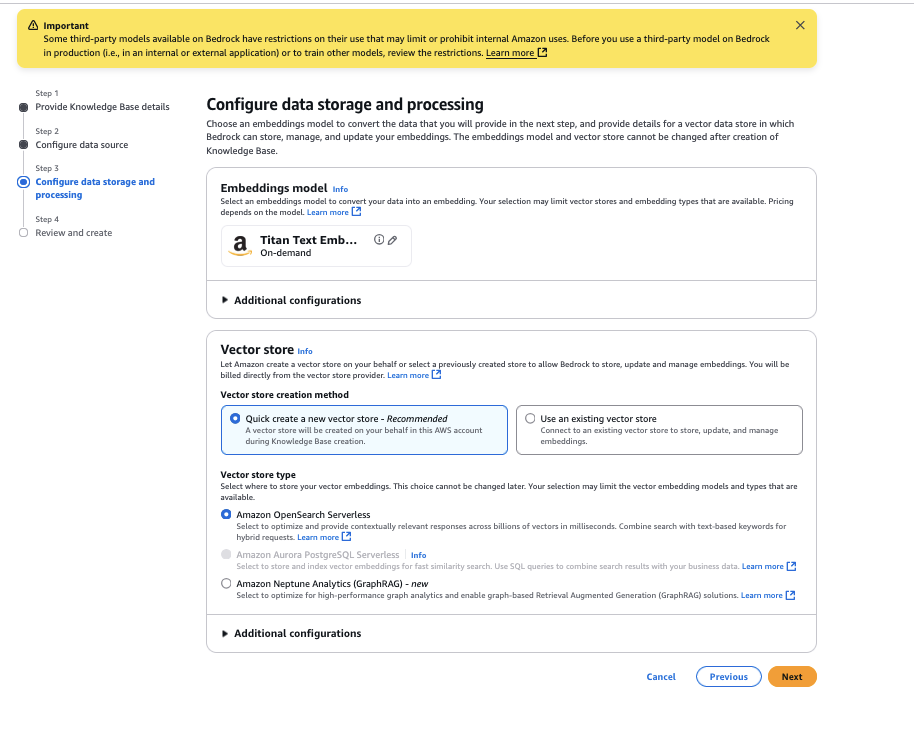
- For Vector store type, select Amazon OpenSearch Serverless, then choose Next.
- Review the configurations and choose Create Knowledge Base.
You have now created a knowledge base with the data source configured as the website link you provided.
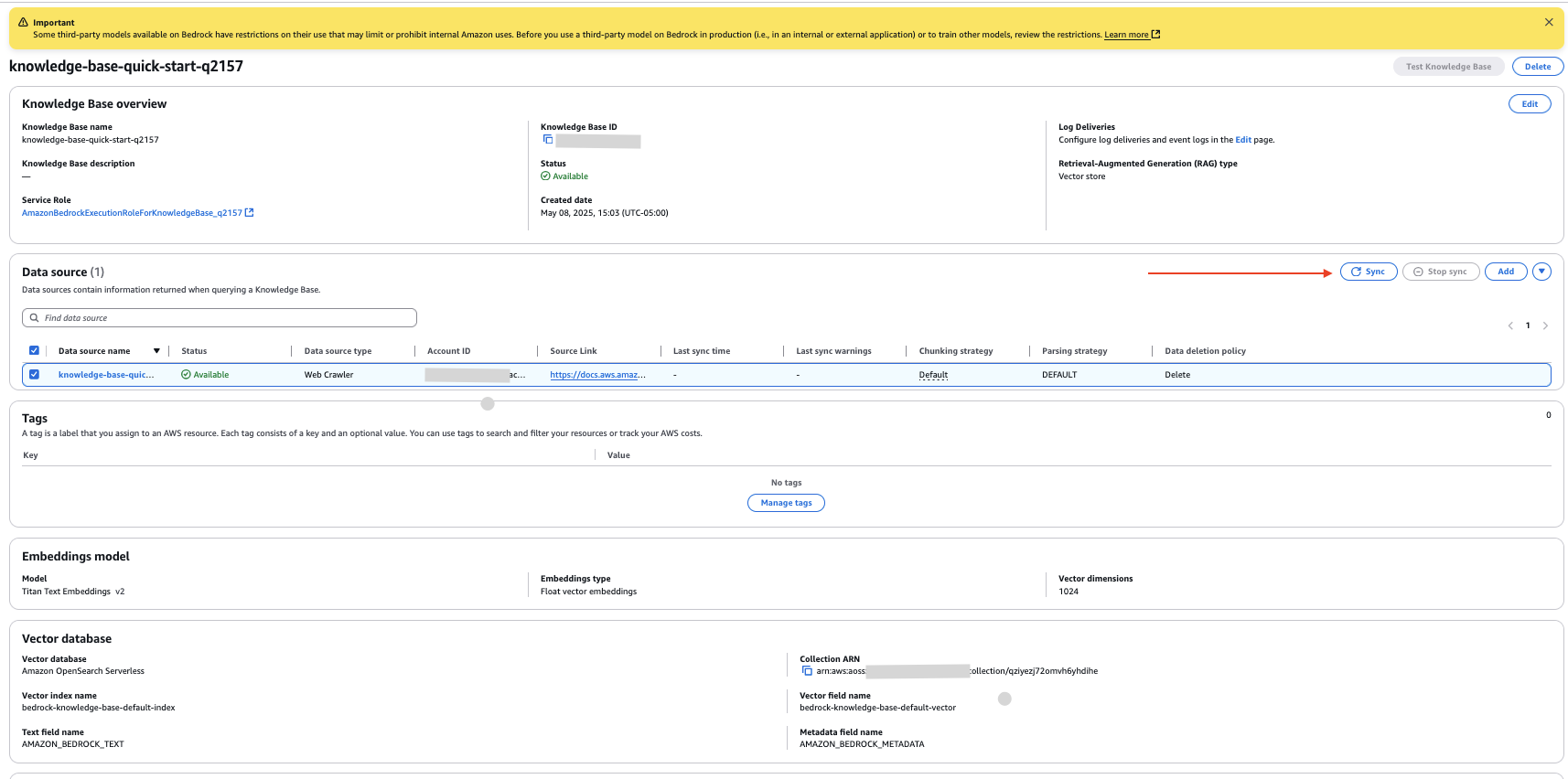
- On the knowledge base details page, select your new data source and choose Sync to crawl the website and ingest the data.
Configure Amazon S3 data source
Complete the following steps to configure documents from your S3 bucket as an internal data source:
- On the knowledge base details page, choose Add in the Data source section.
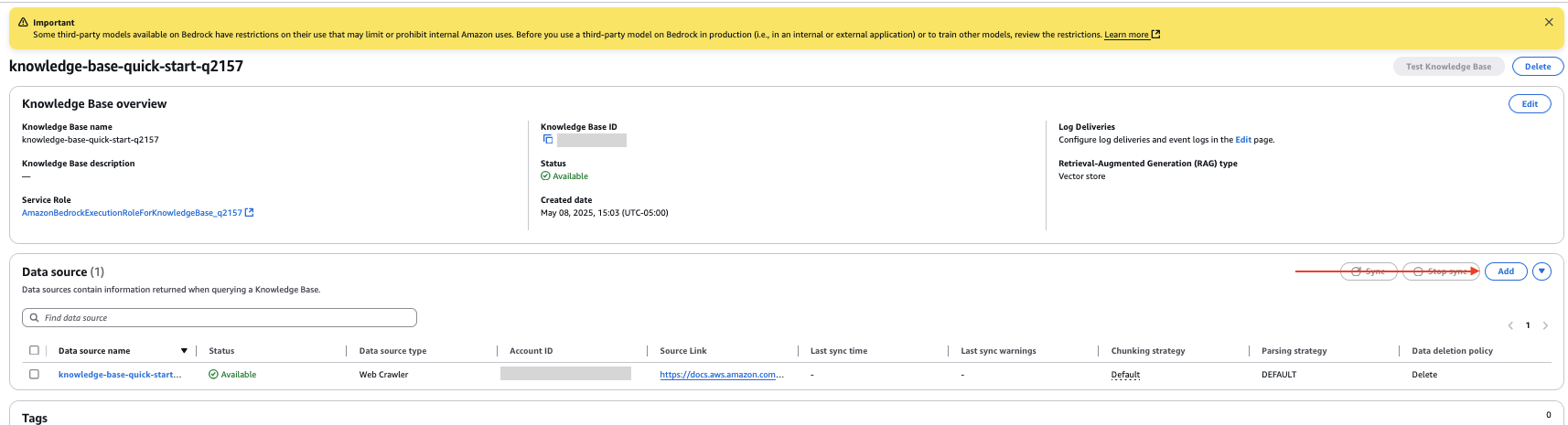
- Specify the data source as Amazon S3.
- Choose your S3 bucket.
- Leave the parsing strategy as the default setting.
- Choose Next.
- Review the configurations and choose Add data source.
- In the Data source section of the knowledge base details page, select your new data source and choose Sync to index the data from the documents in the S3 bucket.
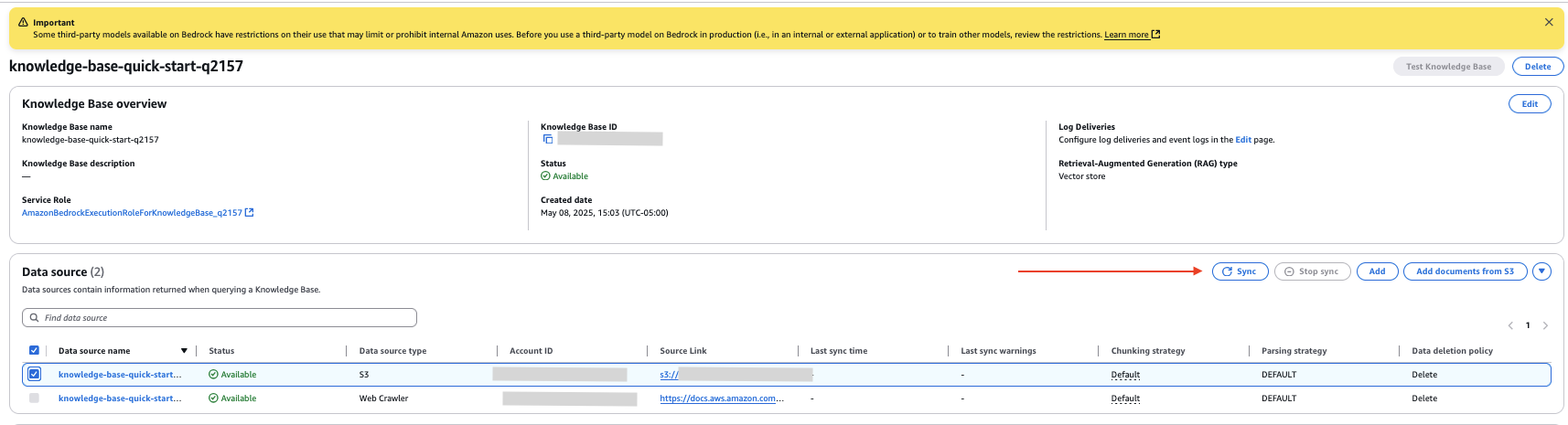
Upload internal document
For this example, we upload a document in the new S3 bucket data source. The following screenshot shows an example of our document.

Complete the following steps to upload the document:
- On the Amazon S3 console, choose Buckets in the navigation pane.
- Select the bucket you created and choose Upload to upload the document.
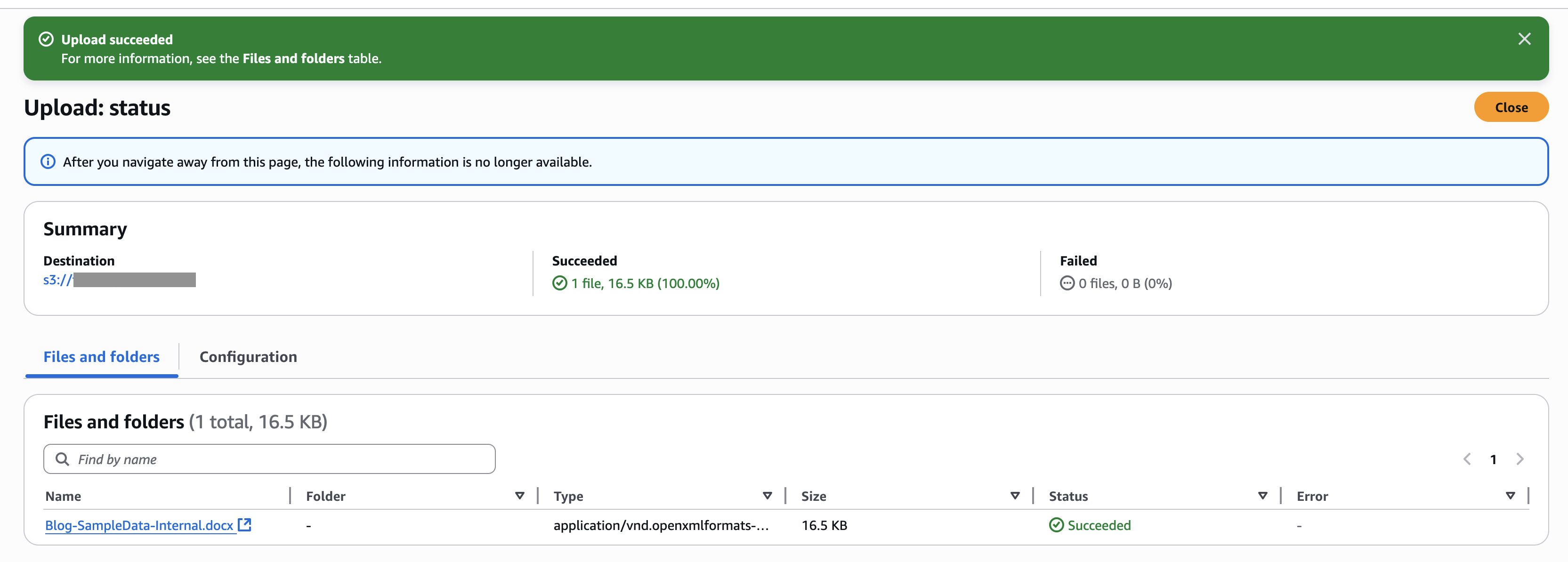
- On the Amazon Bedrock console, go to the knowledge base you created.
- Choose the internal data source you created and choose Sync to sync the uploaded document with the vector store.
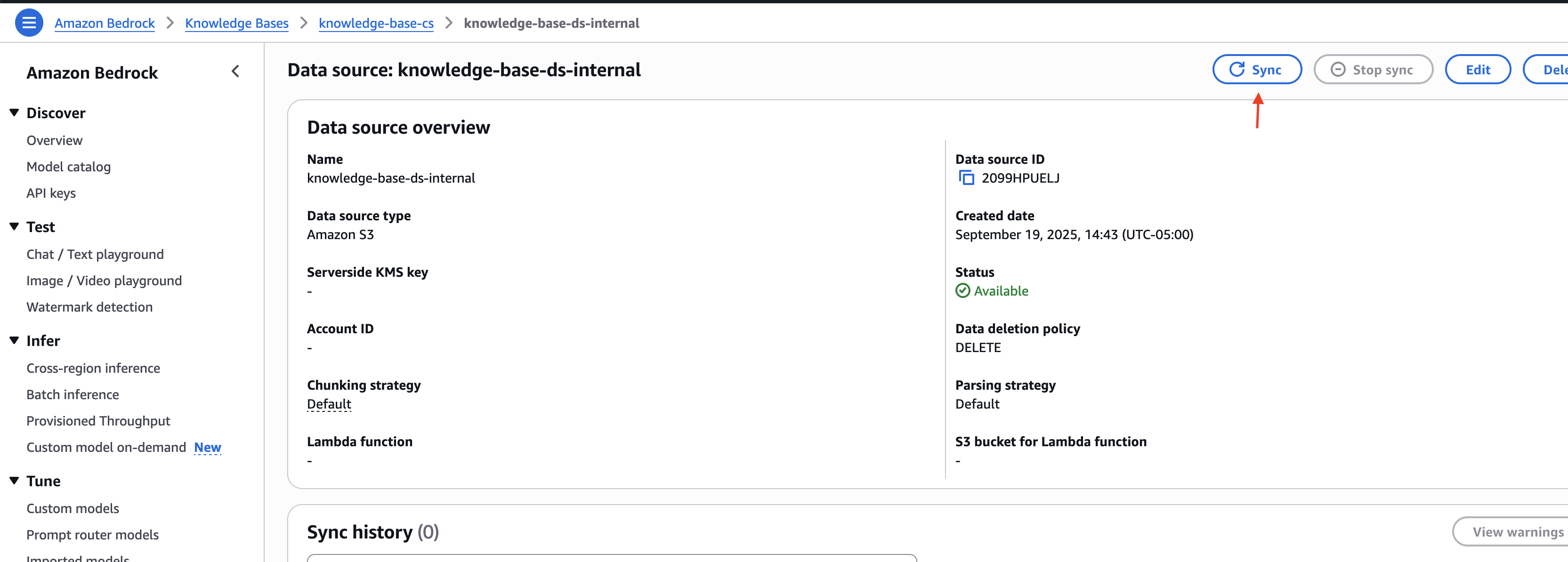
Note the knowledge base ID and the data source IDs for the external and internal data sources. You use this information in the next step when deploying the solution infrastructure.
Deploy solution infrastructure
To deploy the solution infrastructure using the AWS CDK, complete the following steps:
- Download the code from code repository.
- Go to the iac directory inside the downloaded project:
cd ./customer-support-ai/iac
- Open the parameters.json file and update the knowledge base and data source IDs with the values captured in the previous section:
- Follow the deployment instructions defined in the customer-support-ai/README.md file to set up the solution infrastructure.
When the deployment is complete, you can find the Application Load Balancer (ALB) URL and demo user details in the script execution output.
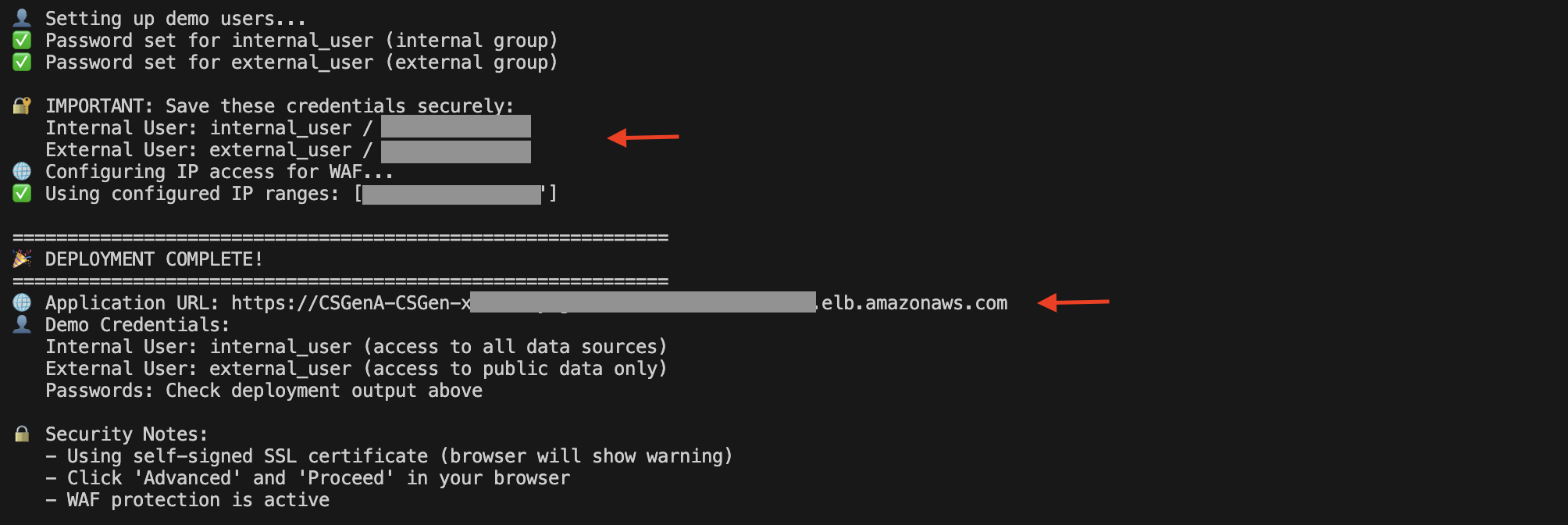
You can also open the Amazon EC2 console and choose Load Balancers in the navigation pane to view the ALB.

On the ALB details page, copy the DNS name. You can use it to access the UI to try out the solution.

Submit questions
Let’s explore an example of Amazon S3 service support. This solution supports different classes of users to help resolve their queries while using Amazon Bedrock Knowledge Bases to manage specific data sources (such as website content, documentation, and support tickets) with built-in filtering controls that separate internal operational documents from publicly accessible information. For example, internal users can access both company-specific operational guides and public documentation, whereas external users are limited to publicly available content only.
Open the DNS URL in the browser. Enter the external user credentials and choose Login.

After you’re successfully authenticated, you will be redirected to the home page.
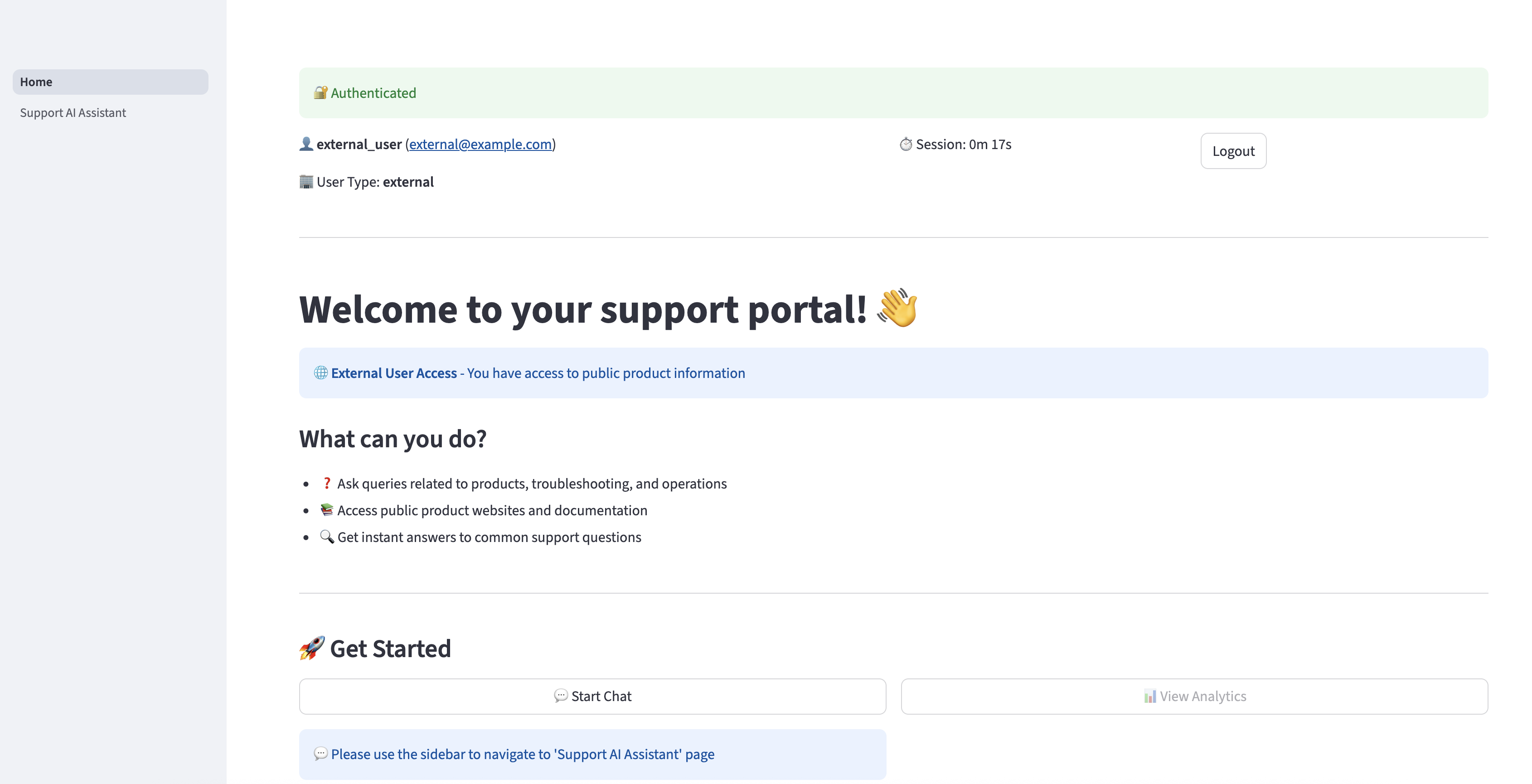
Choose Support AI Assistant in the navigation pane to ask questions related to Amazon S3. The assistant can provide relevant responses based on the information available in the Getting started with Amazon S3 guide. However, if an external user asks a question that is related to information available only for internal users, the AI assistant will not provide the internal information to user and will respond only with information available for external users.
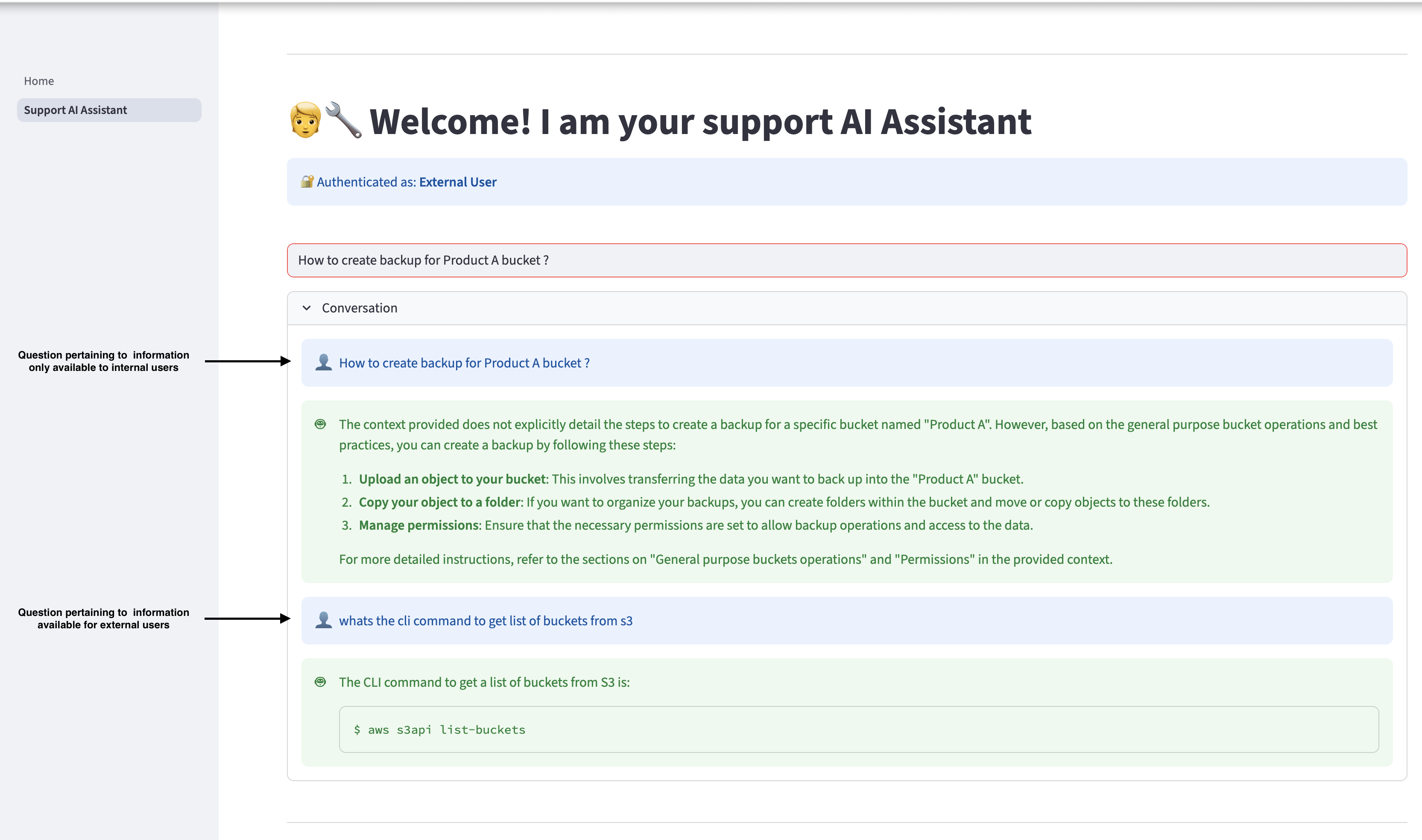
Log out and log in again as an internal user, and ask the same queries. The internal user can access the relevant information available in the internal documents.

Clean up
If you decide to stop using this solution, complete the following steps to remove its associated resources:
- Go to the iac directory inside the project code and run the following command from terminal:
- To run a cleanup script, use the following command:
- To perform this operation manually, use the following command:
- On the Amazon Bedrock console, choose Knowledge Bases under Builder tools in the navigation pane.
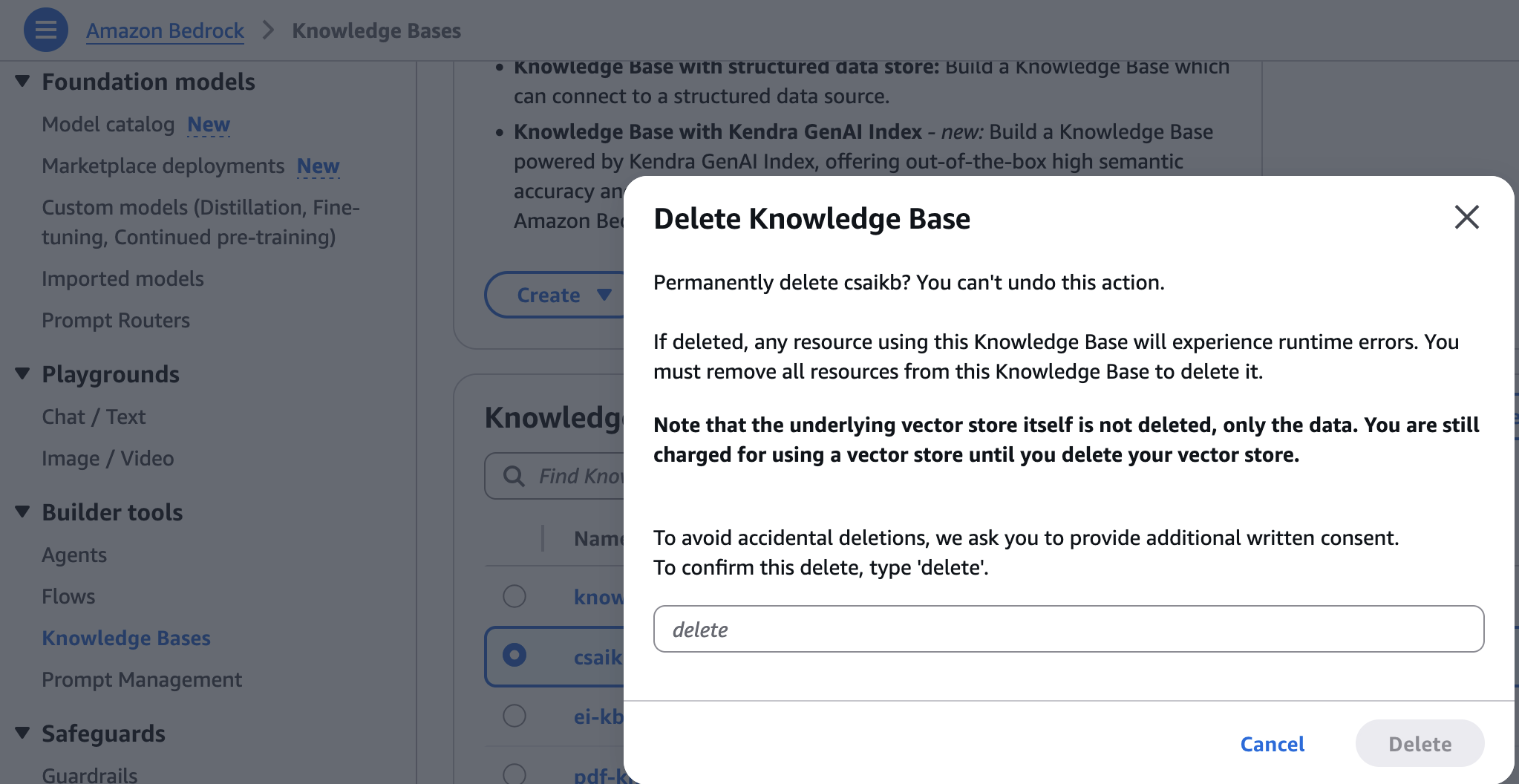
- Choose the knowledge base you created, then choose Delete.
- Enter delete and choose Delete to confirm.
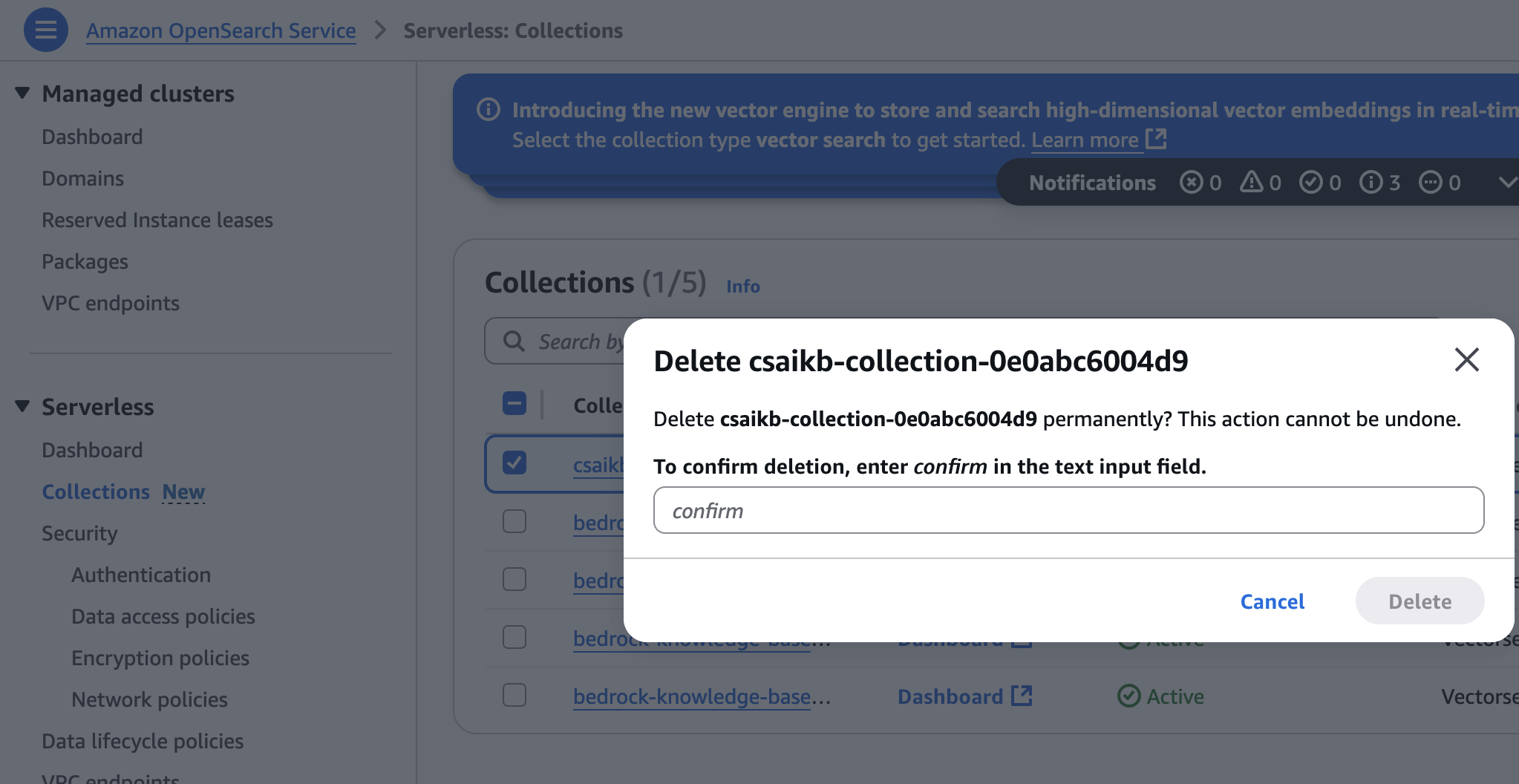
- On the OpenSearch Service console, choose Collections under Serverless in the navigation pane.
- Choose the collection created during infrastructure provisioning, then choose Delete.
- Enter confirm and choose Delete to confirm.
Conclusion
This post demonstrated how to create an AI-powered website assistant to retrieve information quickly by constructing a knowledge base through web crawling and uploading documents. You can use the same approach to develop other generative AI prototypes and applications.
If you’re interested in the fundamentals of generative AI and how to work with FMs, including advanced prompting techniques, check out the hands-on course Generative AI with LLMs. This on-demand, 3-week course is for data scientists and engineers who want to learn how to build generative AI applications with LLMs. It’s the good foundation to start building with Amazon Bedrock. Sign up to learn more about Amazon Bedrock.
About the authors
 Shashank Jain is a Cloud Application Architect at Amazon Web Services (AWS), specializing in generative AI solutions, cloud-native application architecture, and sustainability. He works with customers to design and implement secure, scalable AI-powered applications using serverless technologies, modern DevSecOps practices, Infrastructure as Code, and event-driven architectures that deliver measurable business value.
 Jeff Li is a Senior Cloud Application Architect with the Professional Services team at AWS. He is passionate about diving deep with customers to create solutions and modernize applications that support business innovations. In his spare time, he enjoys playing tennis, listening to music, and reading.
 Ranjith Kurumbaru Kandiyil is a Data and AI/ML Architect at Amazon Web Services (AWS) based in Toronto. He specializes in collaborating with customers to architect and implement cutting-edge AI/ML solutions. His current focus lies in leveraging state-of-the-art artificial intelligence technologies to solve complex business challenges.
Search
RECENT PRESS RELEASES
Related Post