Control where your AI agents can browse with Chrome enterprise policies on Amazon Bedrock AgentCore
May 14, 2026
AI agents with unrestricted web access pose significant security risks. Without Chrome enterprise policies to control browser behavior, an agent might navigate to unauthorized domains, store credentials in the browser’s password manager, or download files outside approved workflows. Organizations with internal services that use a private certificate authority (CA) face an additional barrier. Every HTTPS connection to those services fails with certificate validation errors.
Amazon Bedrock AgentCore Browser now supports Chrome enterprise policies and custom root CA certificates to give organizations granular control over agent browser behavior and connectivity. With Chrome policies, you can configure over 450 browser settings, including URL filtering, download restrictions, and password manager controls, applied through familiar Chrome enterprise JSON configuration. Custom root CA support lets your agents connect to internal services and work with corporate SSL-intercepting proxies by trusting your organization’s certificate authority. For the full reference of available settings, see the Chrome Enterprise policy list.
In this post, you will configure Chrome enterprise policies to restrict a browser agent to a specific website, observe the policy enforcement through session recording, and demonstrate custom root CA certificates using a public test site. The walkthrough produces a working solution that researches Amazon Bedrock AgentCore documentation while operating under enterprise browser restrictions.
Why enforce browser policies for AI agents
Chrome enterprise policies address three organizational needs when applied to AI browser agents.
First, you can restrict agent scope to approved domains. URL allowlists and denylists limit where agents can navigate. An agent tasked with processing invoices on a specific portal doesn’t need access to social media or search engines. Policies enforce these boundaries at the browser level, independent of the agent’s prompt or reasoning.
Second, you can disable risky browser features. With Chrome policies, you can turn off the password manager, block file downloads, disable autofill, and control dozens of other browser capabilities. For data-entry agents that interact with sensitive systems, these controls reduce the risk of unintended data storage or exfiltration.
Third, you can separate policy management from agent development. Managed policies are configured at the browser level through the control plane API and apply to every session created from that browser. This lets your security team define approved browser configurations while your development team focuses on agent logic, without embedding policy decisions in application code.
How Chrome policies and root CA certificates are applied
The integration has two layers of policy enforcement and an optional certificate trust configuration.
Managed policies operate at the browser level. You provide Chrome enterprise policy JSON files stored in Amazon Simple Storage Service (Amazon S3) when creating a browser through the control plane API. These policies are stored by the service and enforced on every session created from that browser. Managed policies map to Chrome’s /etc/chromium/policies/managed/ directory. They can’t be overridden by session-level settings.
Recommended policies operate at the session level. You can optionally provide additional policy JSON files when starting a browser session through the data plane API. These map to Chrome’s /etc/chromium/policies/recommended/ directory and function as user preferences. If a managed policy and a recommended policy conflict on the same setting, the managed policy takes precedence. This is default Chrome behavior.
You can use custom root CA certificates to store your organization’s root CA certificate in AWS Secrets Manager and reference it when creating a browser or AgentCore Code Interpreter. The service imports the certificate into the certificate trust store, so connections to internal services and SSL-intercepting proxies succeed without disabling certificate validation.
Solution architecture
The following diagram shows how Chrome policy JSON files and root CA certificates flow from your environment through the Amazon Bedrock AgentCore control plane and data plane into the isolated browser session.
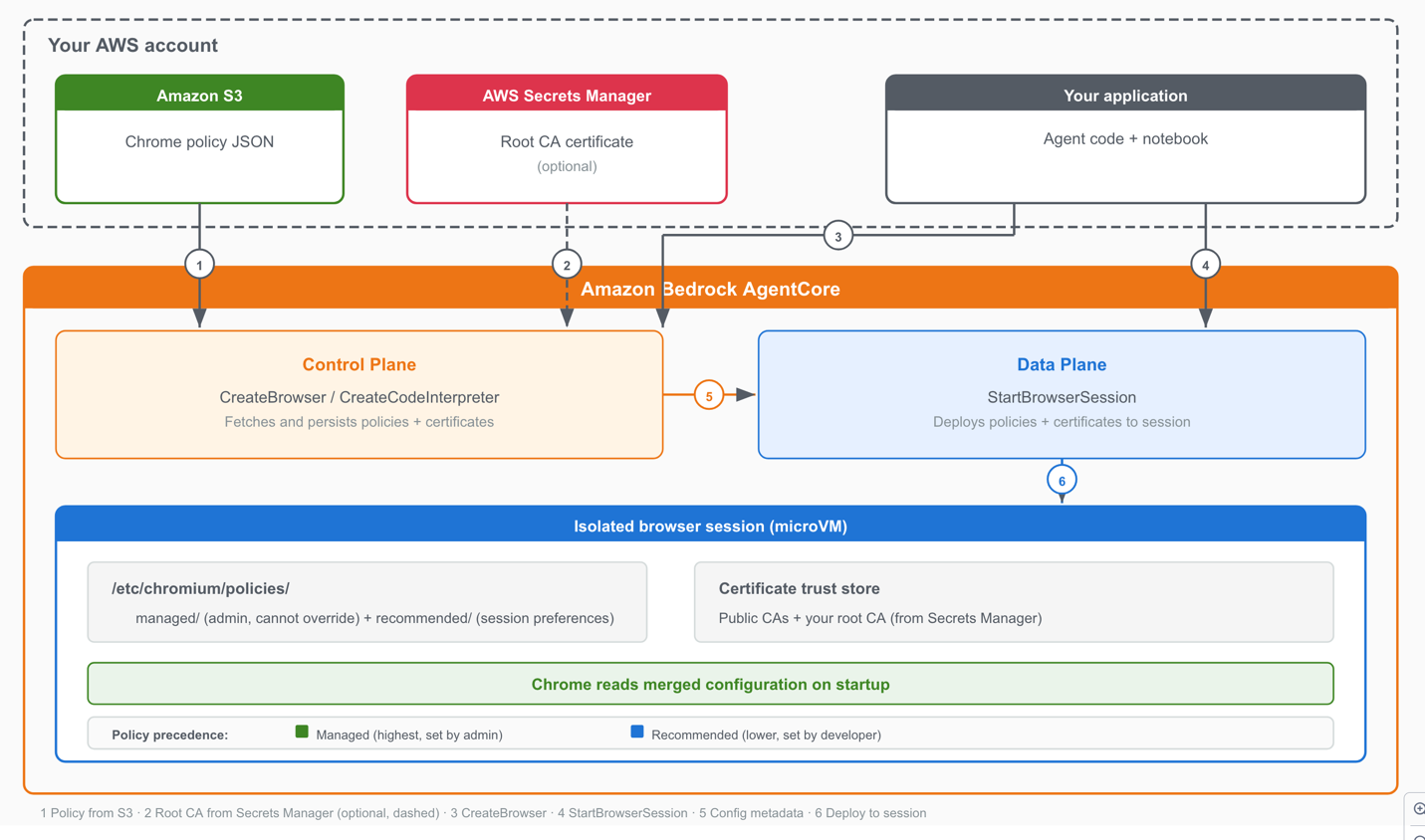
Figure 1: Policy enforcement data flow from your environment through Amazon Bedrock AgentCore to the isolated browser session.
- In your environment, you store Chrome policy JSON files in Amazon S3 and optional root CA certificates in AWS Secrets Manager.
- The control plane fetches policy JSON from your S3 bucket when you call CreateBrowser (arrow 1) and fetches the root CA certificate from AWS Secrets Manager if configured (arrow 2, dashed to indicate this step is optional).
- Your application calls the CreateBrowser API (arrow 3) and then the StartBrowserSession API (arrow 4).
- The control plane passes browser configuration metadata to the data plane (arrow 5).
- The data plane deploys managed policies, recommended policies, and root CA certificates to the isolated browser session (arrow 6). Chrome reads the merged configuration on startup and enforces the policies throughout the session.
Prerequisites
Before you begin, verify that you have the following:
- Python 3.10 or later
- An AWS account with Amazon Bedrock AgentCore access enabled
- AWS credentials configured. You can verify with
aws sts get-caller-identity - An AWS Region where Amazon Bedrock AgentCore is available (see Supported AWS Regions in the AgentCore documentation)
- Access to an AI model to drive the agent. This post uses Anthropic Claude through Amazon Bedrock. AgentCore is model-agnostic. Other model providers and agent frameworks can be substituted. For details on configuring different models with the Strands Agents framework, see Model Providers in the Strands Agents documentation.
The notebook creates the required AWS resources automatically, including the S3 bucket, AWS Identity and Access Management (IAM) execution role, AgentCore Browser, and AgentCore Code Interpreter. This automatic provisioning is intended for demonstration purposes. Production deployments should use pre-existing resources with least-privilege IAM policies reviewed by your security team. Refer to the sample repository’s README for the complete IAM policy details.
Important: Use temporary credentials from AWS IAM Identity Center or AWS Security Token Service (AWS STS). Don’t use long-lived access keys. Follow the principle of least privilege when configuring IAM permissions.
Set up the environment
The complete code for this walkthrough is available as a Jupyter notebook in the sample repository. Clone it and run the cells in sequence.
Clone the repository
git clone https://github.com/awslabs/amazon-bedrock-agentcore-samples.git
cd amazon-bedrock-agentcore-samples/01-tutorials/05-AgentCore-tools/02-Agent-Core-browser-tool/13-browser-chrome-policies
Set up the environment
python3 -m venv .venv
source .venv/bin/activate      # On Windows: .venvScriptsactivate
pip install -r requirements.txt
Configure credentials
export AWS_REGION=us-west-2
Important: Use temporary credentials. Do not commit credentials to source control.
Run the notebook
jupyter notebook browser-chrome-policies.ipynb
Run the cells sequentially. Part 1 covers Chrome enterprise policies. Part 2 covers custom root CA certificates. The following sections explain what each part does and highlight the key code.
Walkthrough
The notebook is organized into two parts. Part one creates a Chrome enterprise policy, applies it to a custom AgentCore Browser, and uses Playwright to verify that allowed URLs load while blocked URLs are rejected. Part two demonstrates custom root CA certificates with AgentCore Code Interpreter.
Define the Chrome enterprise policy
The first notebook cells define a Chrome enterprise policy that restricts the browser to AWS documentation and disables features that your agent doesn’t need. The policy JSON uses standard Chrome enterprise policy settings.
policy =
    "URLBlocklist": ["*"],
    "URLAllowlist": [
        "docs.aws.amazon.com",
        ".aws.amazon.com",
        ".amazonaws.com",
    ],
    "PasswordManagerEnabled": False,
    "DownloadRestrictions": 3,
    "DeveloperToolsAvailability": 0,
    "BookmarkBarEnabled": False,
    "AutofillAddressEnabled": False,
    "AutofillCreditCardEnabled": False,
The following table describes each policy setting.
| Policy | Value | Effect |
| URLBlocklist | [“*”] | Blocks URLs by default |
| URLAllowlist | docs.aws.amazon.com, .aws.amazon.com, .amazonaws.com | Permits AWS documentation and related domains |
| PasswordManagerEnabled | false | Blocks credential storage |
| DownloadRestrictions | 3 | Blocks downloads |
| DeveloperToolsAvailability | 0 | Allows DevTools (required for CDP/Playwright automation) |
| BookmarkBarEnabled | false | Hides the bookmark bar |
| AutofillAddressEnabled | false | Disables address autofill |
| AutofillCreditCardEnabled | false | Disables credit card autofill |
Note that URLAllowlist uses Chrome’s URL filter pattern format, which differs from typical glob patterns. Domain patterns such as docs.aws.amazon.com match the exact domain. A leading dot, such as .aws.amazon.com, matches subdomains. For the full pattern syntax, see the URLAllowlist policy documentation.
Also note that DeveloperToolsAvailability must be set to 0 (or omitted) for browsers that will be used with Playwright or other CDP-based automation. AgentCore Browser automation uses the Chrome DevTools Protocol (CDP). Setting this policy to 2 disables CDP at the Chrome level, which silently breaks automation. The WebSocket connection succeeds at the proxy layer, but Chrome refuses CDP commands, causing timeouts.
Create a browser with managed policies
The next notebook cells create a custom browser that enforces the policy on every session. The key API call uses the enterprise_policies parameter with type set to MANAGED. Session recording is also enabled so you can replay the session afterward.
from bedrock_agentcore.tools import BrowserClient
client = BrowserClient(REGION)
response = client.create_browser(
    name="docs_research_browser",
    execution_role_arn=EXECUTION_ROLE_ARN,
    network_configuration="networkMode": "PUBLIC",
    enterprise_policies=[

            "location":
                "s3":
                    "bucket": BUCKET_NAME,
                    "prefix": POLICY_KEY,

            ,
            "type": "MANAGED",

    ],
    recording=
        "enabled": True,
        "s3Location":
            "bucket": BUCKET_NAME,
            "prefix": "policy-demo",
        ,
    ,
)
The notebook then polls get_browser() until the status transitions from CREATING to READY.
See the sample notebook for the complete code.
Demonstrate Chrome policy enforcement with Playwright
The notebook starts a browser session and uses Playwright to navigate to two URLs. The first URL, docs.aws.amazon.com, is allowed by the policy, so the page loads successfully. The second URL, www.wikipedia.org, is blocked by the policy, so Chrome displays an error page.
The test uses wait_until=”domcontentloaded” instead of the default load event. AWS documentation pages have continuous background network activity from analytics scripts and tracking pixels, which helps prevent Playwright’s networkidle and default load states from resolving. Similarly, text extraction uses page.evaluate() to run JavaScript directly in the browser context, which avoids Playwright’s selector engine timeouts on pages with continuous DOM mutations.
After running this cell, you should see output like the following:
TEST 1: Navigate to docs.aws.amazon.com (ALLOWED)
Page title: Overview - Amazon Bedrock AgentCore
Page text preview: Amazon Bedrock AgentCore ...
Result: PAGE LOADED SUCCESSFULLY
TEST 2: Navigate to www.wikipedia.org (BLOCKED)
Page title:
Result: CHROME POLICY BLOCKED THIS URL
This is the core value of Chrome policies. The restriction happens at the browser level, independent of the agent’s reasoning or prompt instructions.
While the cell runs, you can watch the browser live in the Amazon Bedrock AgentCore console. Navigate to Built-in tools, select your browser (docs_research_browser), and choose View live session for the active session.
See the sample notebook for the complete code.
Review the session recording
Because you enabled session recording when creating the browser, you can replay the session to observe the policy enforcement.
Open the Amazon Bedrock AgentCore console. In the navigation pane, choose Built-in tools. Select your browser tool (docs_research_browser). In the Browser sessions section, find the completed session with Terminated status and choose View Recording.
The session replay interface provides interactive video playback with a timeline scrubber, timestamped user actions including each navigation event and the blocked attempt, and network events confirming that only allowed traffic succeeded.
Run a Strands Agent with the restricted browser (optional)
The notebook includes an optional cell that creates a Strands agent using the policy-restricted browser. The agent researches AgentCore documentation within the allowed domain. When it attempts to navigate to an unauthorized URL, it observes that the page is blocked and continues working with the accessible pages.
This sample uses Anthropic Claude through Amazon Bedrock. AgentCore is model-agnostic. Other model providers can be substituted. For model configuration, see Model Providers in the Strands Agents documentation.
See the sample notebook for the complete code.
Demonstrate custom root CA certificates
Organizations that run internal services with private CAs, or route traffic through SSL-intercepting corporate proxies, need their agents to trust those non-public certificates. AgentCore Browser and AgentCore Code Interpreter support custom root CA certificates for this purpose.
This section uses https://untrusted-root.badssl.com, a public website that intentionally presents a certificate signed by an untrusted root CA. HTTPS connections to this site fail with certificate validation errors, just like connections to your internal services would fail without the correct root CA.
The notebook performs three steps.
Store the root CA certificate in AWS Secrets Manager
The BadSSL untrusted root CA certificate is publicly available (source: badssl.com/certs/ca-untrusted-root.crt). The notebook saves it to AWS Secrets Manager so that Amazon Bedrock AgentCore can import it into the certificate trust store. In a production environment, the organization’s internal CA certificate or SSL-intercepting proxy root CA certificate would be placed in Secrets Manager the same way.
Show the failure without the root CA
The notebook creates a default AgentCore Code Interpreter session and runs Python code that calls urllib.request.urlopen() against the untrusted site. The connection fails with an SSLCertVerificationError. This is the same error you would see when connecting to internal corporate services that use a private CA.
Show success with the root CA
The notebook then creates a custom AgentCore Code Interpreter that trusts the BadSSL root CA certificate using the certificates parameter. This is the same pattern already available in BrowserClient.create_browser().
from bedrock_agentcore.tools import CodeInterpreter, Certificate
ci_client_with_ca = CodeInterpreter(REGION)
response = ci_client_with_ca.create_code_interpreter(
    name="demo_rootca_interpreter",
    execution_role_arn=EXECUTION_ROLE_ARN,
    network_configuration="networkMode": "PUBLIC",
    certificates=[Certificate.from_secret_arn(secret_arn)],
)
After running the same urlopen() code against the custom interpreter, the output shows Status: 200. The connection succeeds because the BadSSL root CA is now trusted. No code changes were needed. The trust was configured at the infrastructure level.
See the sample notebook for the complete code.
Apply this to your organization
The badssl.com demo mirrors two real-world scenarios.
| Scenario | What you store in AWS Secrets Manager | Configuration |
| Internal corporate services | Your organization’s root CA certificate (the CA that signs certificates for your HR portal, Jira, Artifactory, and similar services) | Reference the secret ARN in certificates when creating a browser or AgentCore Code Interpreter |
| SSL-intercepting corporate proxies | Your proxy’s root CA certificate (used by Zscaler, Palo Alto Networks, or similar) | Reference the secret ARN in certificates and configure proxy settings |
Custom root CA certificates work with both AgentCore Browser and AgentCore Code Interpreter. In the browser, the certificate is imported into Chrome’s trust store. In the interpreter, the service configures environment variables such as REQUESTS_CA_BUNDLE and SSL_CERT_FILE so that Python libraries trust the custom CA without code-level workarounds.
You can combine root CA certificates with Chrome policies in a single browser. The following example creates a VPC-connected browser that trusts an internal CA and restricts navigation to a corporate intranet.
from bedrock_agentcore.tools import BrowserClient, Certificate
response = client.create_browser(
    name="internal_locked_down_browser",
    execution_role_arn=EXECUTION_ROLE_ARN,
    network_configuration=
        "networkMode": "VPC",
        "vpcConfig":
            "securityGroups": ["sg-0123456789abcdef0"],
            "subnets": ["subnet-0123456789abcdef0"],

    ,
    enterprise_policies=[

            "location":
                "s3":
                    "bucket": "org-policies",
                    "prefix": "intranet-only-policy.json",

            ,
            "type": "MANAGED",

    ],
    certificates=[
        Certificate.from_secret_arn(
            "arn:aws:secretsmanager:us-west-2:123456789012:secret:corp-root-ca"
        )
    ],
)
Clean up resources
To avoid incurring charges, delete the resources that you created. Run the cleanup cells at the end of the notebook, which stop active browser sessions, then delete the custom browser, AgentCore Code Interpreter, IAM role, Secrets Manager secret, and S3 policy file.
Amazon Bedrock AgentCore Browser sessions incur charges while active. For pricing details, see Amazon Bedrock AgentCore pricing.
Conclusion
In this post, you configured Chrome enterprise policies to restrict a browser agent to approved domains and disabled risky browser features. You observed the enforcement through live view and session recording. You also demonstrated custom root CA certificates using a public test site, showing how AgentCore Code Interpreter sessions can connect to services that use non-public CAs.
With these capabilities, you can deploy AI agents that operate within your organization’s security and compliance boundaries. Chrome policies provide browser-level controls managed independently from agent application code. Custom root CA support removes connectivity barriers to internal infrastructure.
Next steps
Start by creating a browser with a URL allowlist tailored to your use case. The Chrome Enterprise policy list documents over 450 configurable settings. For data-entry agents that interact with sensitive forms, consider disabling autofill and the password manager. For agents that process documents on a specific portal, restrict downloads and limit navigation to that portal’s domain.
If your organization uses private PKI, configure root CA certificates and test connectivity to your internal services. For agents that operate behind SSL-intercepting proxies, combine the root CA configuration with the proxy configuration feature to route traffic through your corporate proxy while trusting its certificate.
For more information about Amazon Bedrock AgentCore Browser capabilities, see the Amazon Bedrock AgentCore Browser documentation. If you have feedback, open an issue in the Amazon Bedrock AgentCore Python SDK repository.
Important: This sample code is intended for development and demonstration. For production deployments, follow the principle of least privilege for IAM permissions, restrict Amazon S3 bucket policies to authorized principals, rotate AWS Secrets Manager certificates before expiration, and follow the AWS Well-Architected Framework security pillar.
Chrome is a trademark of Google LLC. All other trademarks are the property of their respective owners.
About the authors
Search
RECENT PRESS RELEASES
Related Post