Here’s how to use Tesla’s online tool to unlock encrypted dashcam video clips (update 2026.20 or later)
June 6, 2026
In the recent over-the-air (OTA) software update version 2026.20, Tesla (TSLA) added encryption to dashcam video clips.
If you enable the dashcam clip encryption option in vehicle controls (software update 2026.20 or later required), the vehicle encrypts the FSD, Sentry Mode, and incident-related video clips before saving them onto the plugged-in USB flash drive.
This new feature adds an extra layer of safety and privacy to your vehicle’s private video clips by adding a layer of encryption to the files. This method blocks unauthorized use of these videos by a third party.
For example, if someone steals the USB from your car, they will need to decrypt the video clips first before being able to view them.
Tesla dashcam video clips contain details such as speed, steering wheel angle & self-driving state. So, it’s important to safeguard this information as well as the videos themselves.
In the 2026.20 official release notes, Tesla mentioned that the encryption from the Tesla flash drive video files can be removed using an online tool.
Tesla has hosted this tool on its official website. You can access it by going to https://dashcam.tesla.com in your browser.
Using a desktop computer or a laptop will make it easier and more convenient for you to convert multiple video clips to be viewable by any video player (MS Windows or Apple Mac).
So, first, copy the encrypted video files from your car’s flash USB drive to your computer, then go to https://dashcam.tesla.com.
Interestingly, it’s not a tool that is publicly available. Tesla has kept it for its car owners only. Therefore, you will have to log in using your Tesla Account (registered email and password).
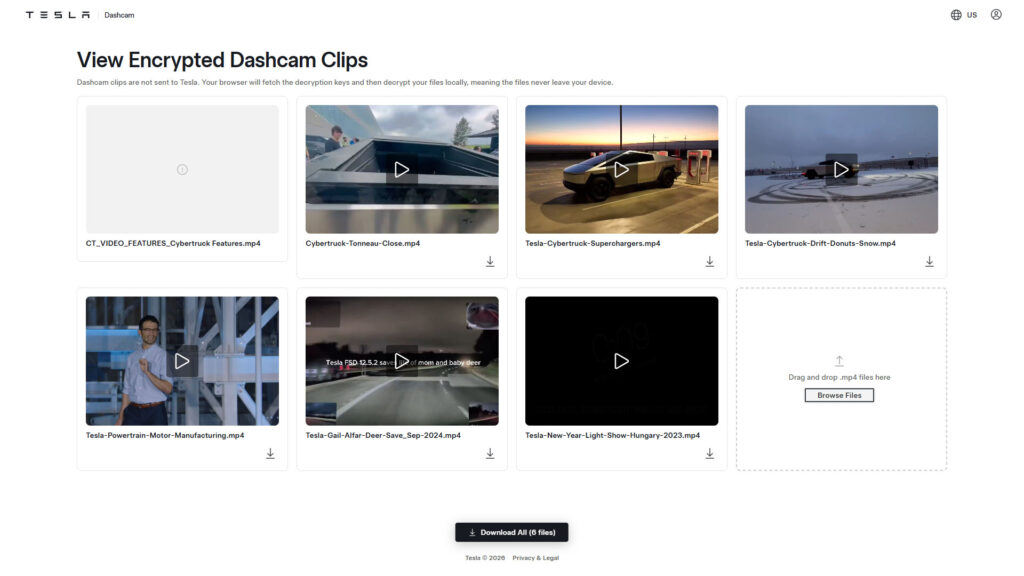
I used my Tesla Account credentials to sign in to the Tesla Dashcam Viewer online tool. As you can see in the screenshot above, I have uploaded multiple video clips to the tool for the removal of the encryption.
Tesla’s online dashcam clip viewer requires the videos to be in the MP4 format (file extension .mp4). I uploaded some random video clips for demonstration purposes only. You can use the tool to select multiple clips at once or upload them one by one.
After uploading these files, you have the choice to individually download the video clips to your device, as the encryption is removed, or you can download them all at once using the black button at the bottom of the screen.
You can also view individual clips by pressing the Play icon. This gives ease of selection, especially if you’re looking for specific footage like Sentry Mode clips.
To further enhance the privacy of its customers, the tech & AI automaker performs the entire decryption process in the browser on the user’s end. These video clips are not uploaded or sent to Tesla computers.
The tool mentions this as:
Dashcam clips are not sent to Tesla. Your browser will fetch the decryption keys and then decrypt your files locally, meaning the files never leave your device.
Stay tuned for constant Tesla updates, follow us on:
Google News | Flipboard | X (Twitter) | WhatsApp Channel | RSS (Feedly).
Search
RECENT PRESS RELEASES
Related Post